01 / LIVE SCREEN
Check on your Mac from anywhere.
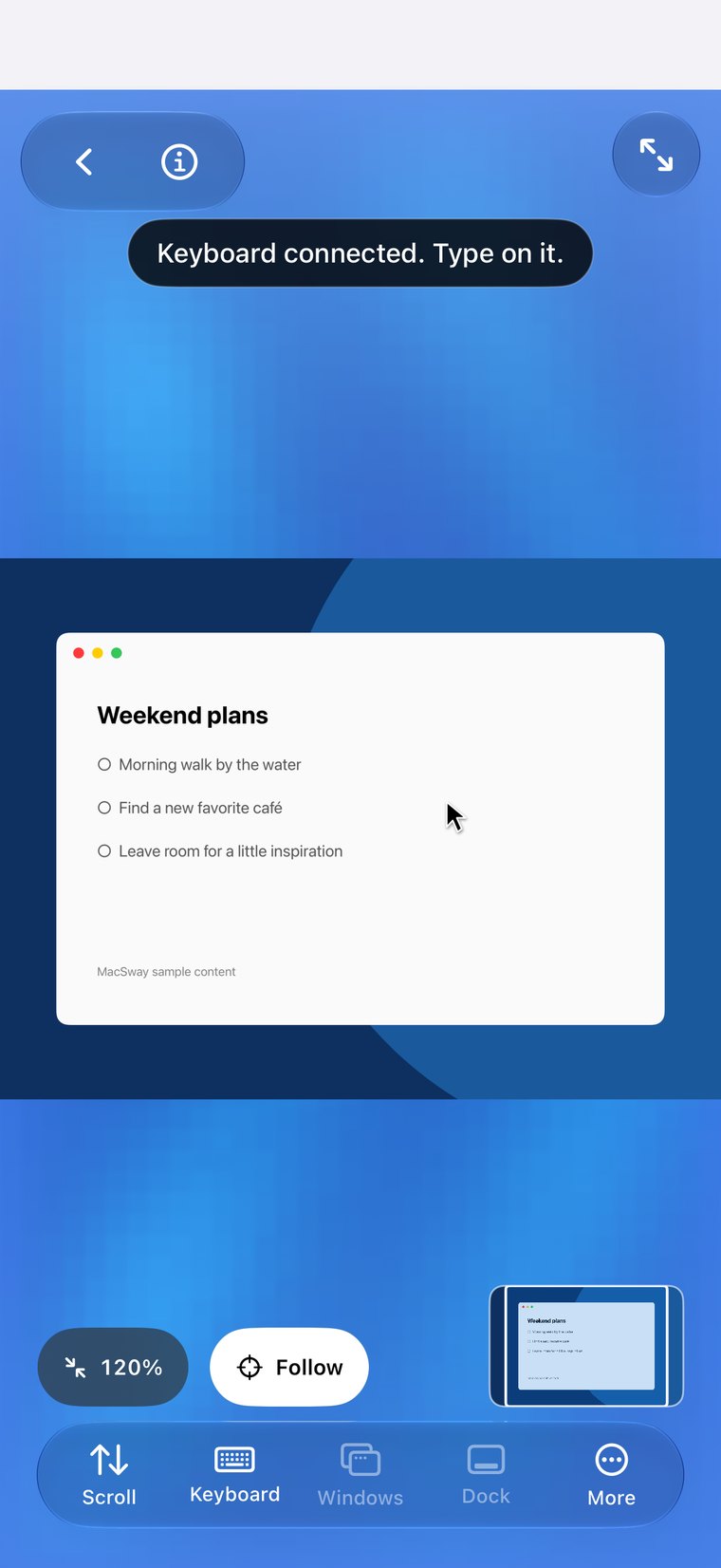
See the Mac screen live on your iPhone. Tap to click, type with the iPhone keyboard, approve a request, open a file or start a task without going back to your desk.
CONTROL YOUR MAC FROM YOUR IPHONE
Your Mac stays at your desk. Your iPhone goes with you. Use it as a trackpad and keyboard from the couch, or see and control the Mac’s screen from another room or another city. No account needed.
MacSway makes your iPhone the remote for a Mac that stays at your desk or in the corner. Here is what you can do from where you are.
See the Mac screen live on your iPhone. Tap to click, type with the iPhone keyboard, approve a request, open a file or start a task without going back to your desk.
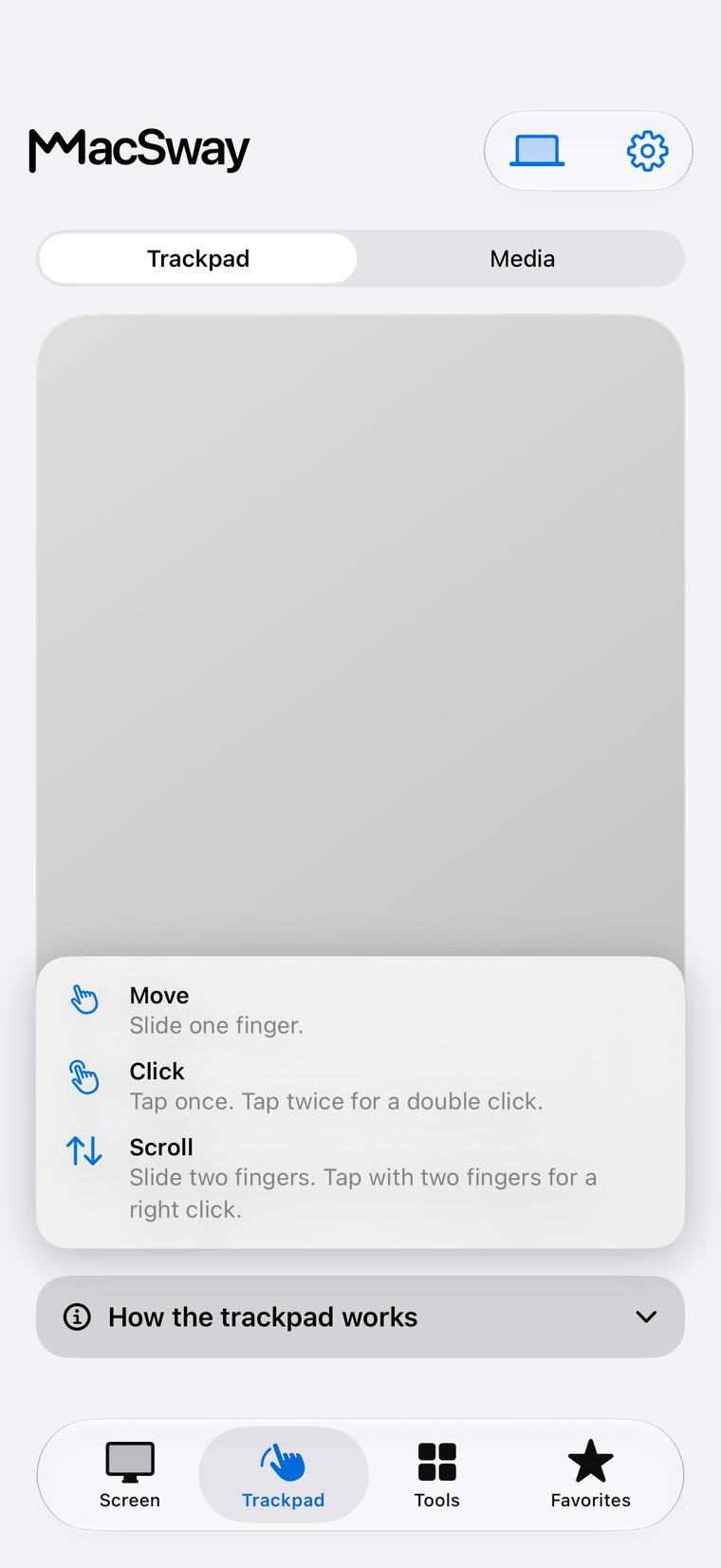
Start a movie, pause the music or change the volume on a Mac that is connected to the TV or speakers. Your iPhone is the trackpad and keyboard.
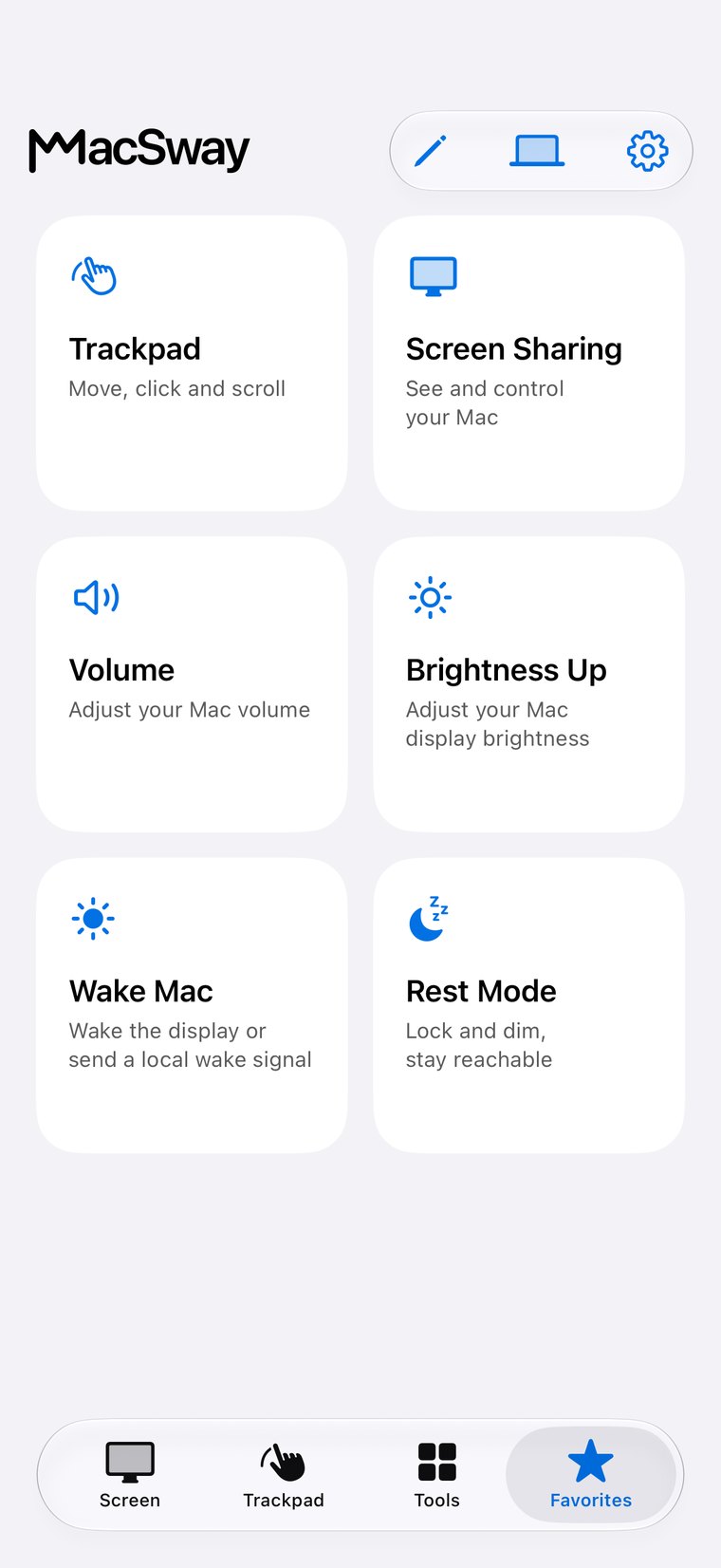
Put the actions you use every day, like mute, volume or window layout, on your Home Screen. One tap, no app to open.
Adjust volume and brightness, play and pause Music or Spotify, and lock the Mac or put it in Rest mode when you walk away.
Six-digit pairing and TLS 1.3. No account, and nothing passes through a MacSway server.
At home MacSway works over your Wi-Fi. Away from home, tap Connect remotely and your iPhone connects to the Mac directly, peer to peer and encrypted, with no MacSway server in between. Leave the Mac on and plugged in, with the companion app running. No MacSway account required.
DownloadBoth devices need internet. The Mac must stay on and reachable: plugged in, with a long auto-lock or in Rest mode.Setup takes a couple of minutes.
Download MacSway for Mac from this page and open it on the Mac you want to control. It runs in the menu bar.
Open the app on the same Wi-Fi network and choose your Mac.
Confirm the code shown on your Mac. You are connected.
Trackpad, keyboard, volume, screen sharing, widgets and remote access are all free.
Build for community. Build from anywhere. 💙
Your Mac is the computer that stays in one place. Your iPhone is the one in your pocket. MacSway connects them, so what you can do at the desk you can do from wherever you are.
Everything in the app's Tools tab, in short.
MacSway connects your iPhone straight to your own Mac. There is no MacSway cloud in between.
Four things, and you are ready to go.
Quick answers before you install.
Yes. The iPhone is the remote and the Mac is the computer you control, so both need the app. Install MacSway on your iPhone and the companion app on your Mac. The Mac app runs in the menu bar and receives the commands.
Yes. Tap Connect remotely and MacSway finds a way to your Mac by itself. Both devices need internet, and the Mac must stay on and reachable: plugged in, awake or in Rest mode.
MacSway is made for iPhone and iPad running iOS 17 or later and Mac running macOS 14 or later. Windows and Android are not supported.
Pair using a six-digit code. Communication uses TLS 1.3, and device-specific access can be revoked from the Mac.
Wake behavior depends on your Mac, network and power settings. Waking from genuine system sleep is not guaranteed. For reliable remote use, MacSway provides a display-off rest mode that keeps the Mac available.
Yes. Install the free MacSway companion on your Mac and the app on your iPhone or iPad, then pair them with a six-digit code. Your iPhone or iPad becomes a trackpad, keyboard and remote for the Mac, from the couch or from another room. You can also see the Mac's screen and reach it from other networks.
No. MacSway has no accounts, no ads and no cloud server in between. The iPhone app sends only anonymous usage counts, which you can switch off in Settings. Purchases go through the App Store.
Yes. Every feature is free: trackpad, keyboard, volume, screen sharing, widgets, remote access and all the extra tools. There is nothing to buy.
No, it is the opposite. iPhone Mirroring shows your iPhone on your Mac. MacSway shows and controls your Mac on your iPhone.
Open MacSway on the iPhone, search for devices and pick your Mac. Accept the request on the Mac and enter the six-digit code it shows. The pairing is remembered, so you only do this once per Mac.
Accessibility, so MacSway can move the pointer and type. Screen Recording, for screen sharing. Local Network, so the two apps can find each other. You can change all three in System Settings under Privacy & Security.
No. The picture goes straight from your Mac to your iPhone and is not saved. There is no MacSway server that could receive it.
No. MacSway does not route or inspect your traffic. To use it away from home, tap Connect remotely: MacSway looks for an encrypted path to your Mac by itself.
At home, on the same Wi-Fi, it works right away. On another network or on mobile data, tap Connect remotely. The Mac must be on, awake and running MacSway, so keep it plugged in and extend the automatic lock, or use Rest mode.
Yes. Pair as many Macs as you like and pick the one you want from the device list.
Type on the Mac with the iPhone keyboard, press Return, Delete, Tab and Escape, and send text to the Mac's clipboard.
Yes. Files are saved to your Mac's Downloads folder, and a photo can be placed into a text field on the Mac.
Home Screen widgets that run a Mac action with one tap: mute, play and pause, volume, window layout. They are free like everything else.
Yes. Play, pause, next and previous for Music and Spotify, plus a volume slider.
Yes. With screen sharing you can watch a long build, approve a prompt or type a quick fix from your phone. MacSway does not connect to any particular tool; it gives you access to your Mac.
Open the MacSway menu on the Mac, go to the paired devices and revoke that phone. It can only connect again with a new code.
Nothing. MacSway and its Mac companion are free, with every feature unlocked, and there is no subscription.
Download it from this website. It is signed with an Apple Developer ID and notarized by Apple. Open it once and it stays in your menu bar.
The apps and this website are available in 43 languages.
Write to [email protected] or open the Support page. Include your app and macOS versions and how you connect. Never send pairing codes or screenshots of private content.
When the Mac stays in one place and you do not: pause a movie from the couch, present from a different spot in a meeting room, check a long task from another room, or reach your Mac at home from another city.
Keep it plugged in. In the MacSway menu turn on the option that keeps the Mac available with the display asleep, or extend the automatic lock. Allow Accessibility, Screen Recording and Local Network, and start MacSway at login. A closed MacBook lid puts the Mac to sleep. The full checklist is on the page “How to prepare your Mac for remote control”.
MacSway works with any Mac that runs macOS 14 or later: MacBook Air and Pro, iMac, Mac mini, Mac Studio and Mac Pro, with Apple silicon or Intel processors. The iPhone or iPad needs iOS 17 or later. Windows and Android are not supported.
When you tap Connect remotely, the iPhone or iPad and the Mac open a direct, encrypted peer-to-peer connection over the internet, with the same WebRTC technique that video calls use to get through home routers. To start it they exchange two small encrypted messages through a public message relay (ntfy.sh) and ask public STUN servers for the public address of their connection. After that your screen, keystrokes and files go straight between the two devices, with no MacSway server and no port forwarding. Only devices you already paired on your home network can connect.
Check that the Mac is on, plugged in, awake or in Rest mode and running the MacSway Mac app, that both devices have internet, that you paired the device once on the home network, and that Remote access over the internet is on in the MacSway menu on the Mac. On a few very strict networks, such as some carrier or company networks, a direct path cannot be built. Then you can use Tailscale, a separate app, as a backup; the app has a guide in Settings.
Yes. MacSway 1.6 adapts to iPhone Duo. On the outer display the controls sit in a side column under the Wi-Fi mark. Held like a laptop, the Mac fills the top and a trackpad, keyboard and media pad sit below.
MacSway sends the Mac screen as hardware video and adapts the quality to your connection. Since version 1.6, with the current Mac app, it can run at up to 120 frames per second when both the iPhone display and the Mac display support it, for example an iPhone with ProMotion and a ProMotion Mac display. On other screens it uses 60 or 30 frames per second.
Remote access over the internet only accepts devices you have already paired on your home network. A new device can never be paired over the internet, three wrong attempts end the connection, and you can revoke any phone from the MacSway menu on the Mac at any time. If you do not want it, switch off Remote access over the internet in the MacSway menu.
Install the Mac app and the iPhone app, pair with a six-digit code, and start.