DISPLAY MODE · COMING IN THE NEXT UPDATE

Show your Mac on a TV or monitor,
with your iPhone as the remote

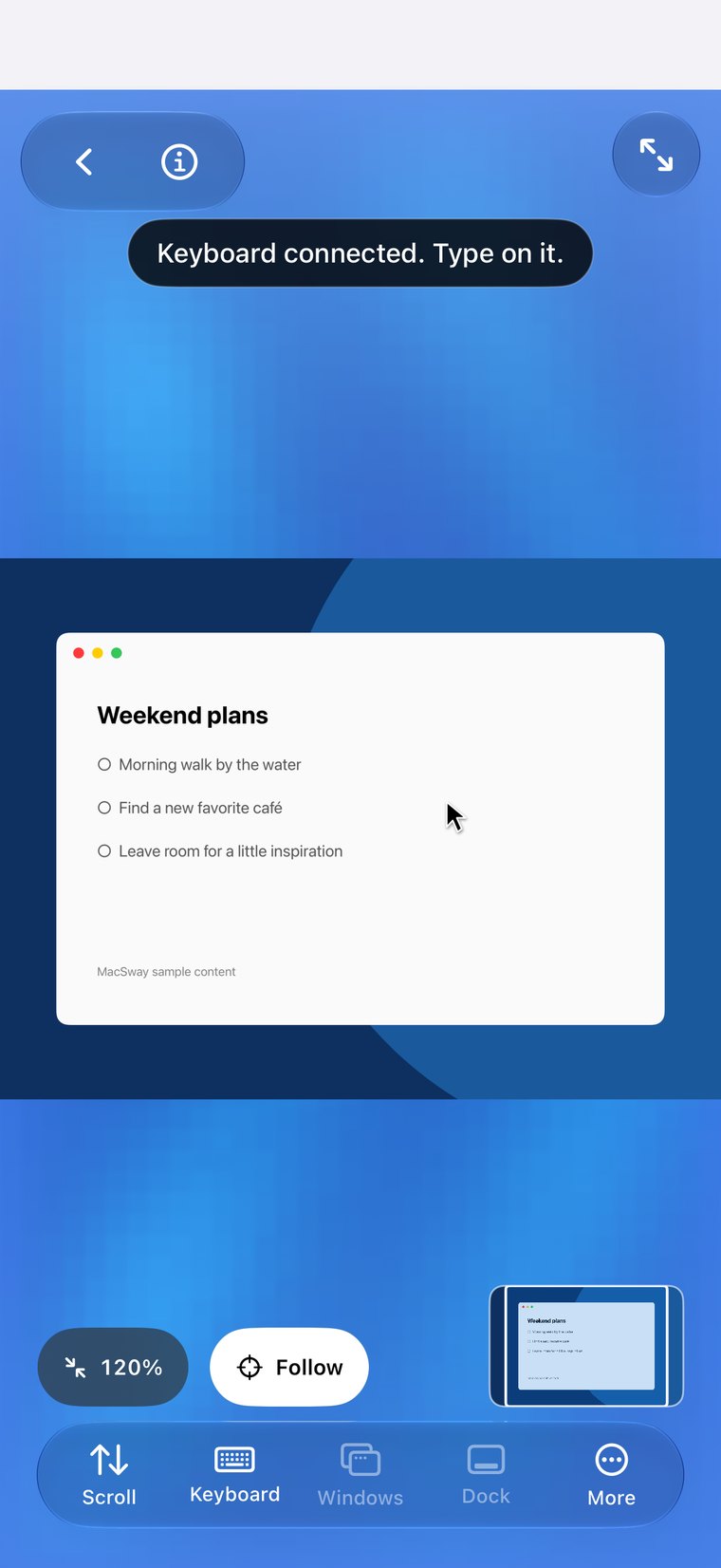
Put your Mac on the big screen and keep the iPhone in your hand. In Display Mode the TV or monitor shows your Mac with a cursor, and the phone turns into a trackpad or a keyboard at one tap.

Free · iOS 17+ · macOS 14+ · Both apps required
Signed and notarized by Apple · macOS 14+ · Apple silicon and Intel
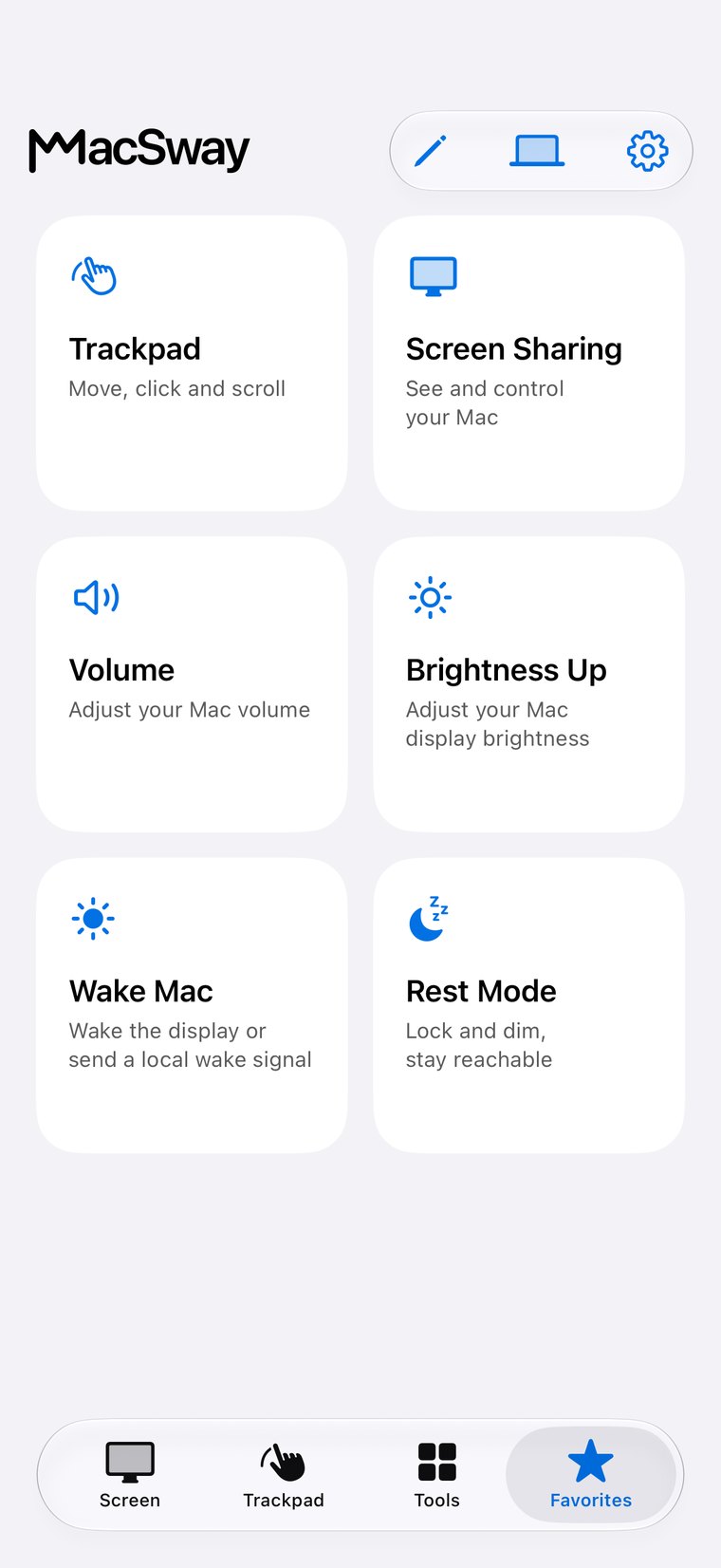
MacSway Favorites screen
✦
Your Mac on the big screeniPhone as the remote
Wireless or by cableNo account
NO ACCOUNT · NO CLOUD RELAYSee features
01

What it does

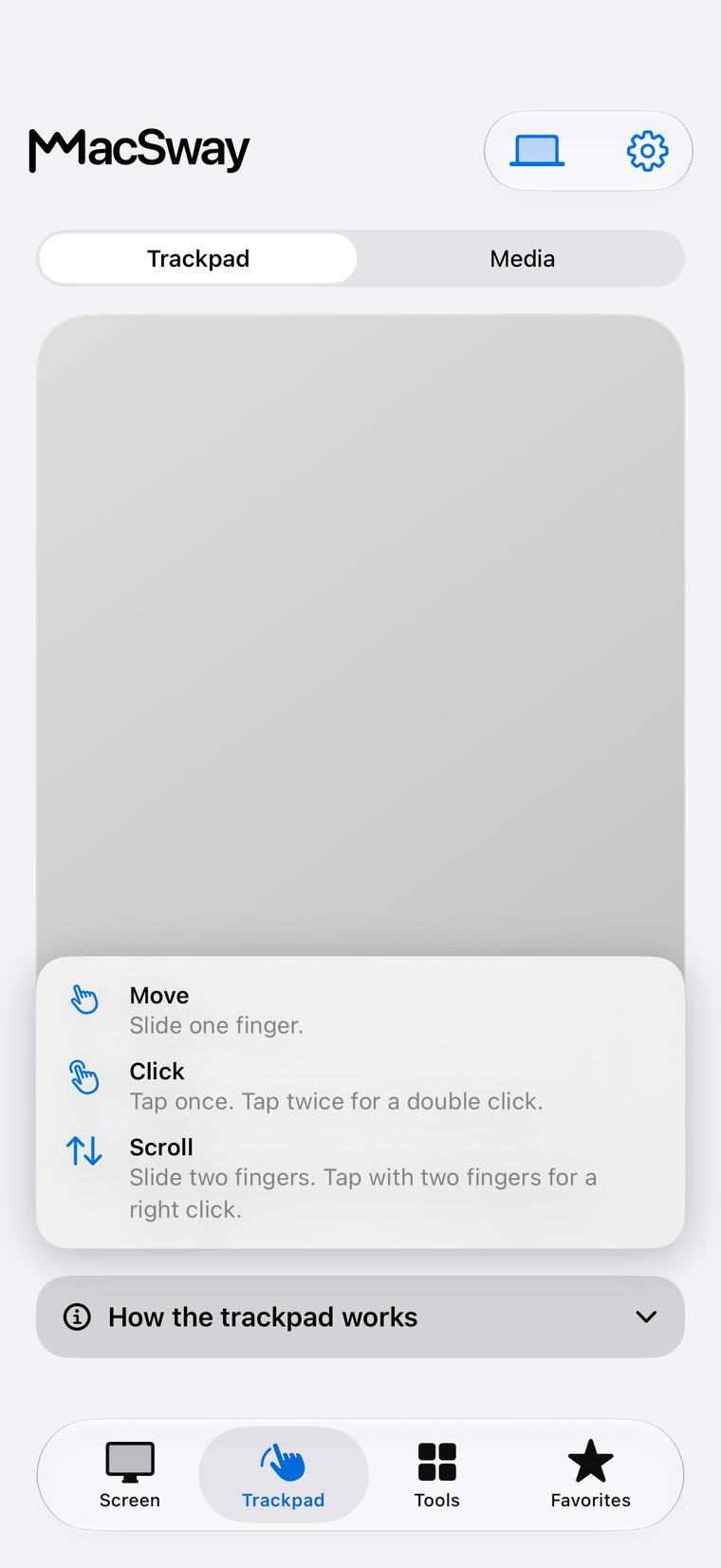
Display Mode sends the picture of your Mac to a second screen: a TV, a monitor or a projector. The screen shows only your Mac, large and clean. Your iPhone stays in your hand as the controller, with two states: a trackpad to move and click, and a keyboard to type.

You see the cursor move on the big screen as you move your finger on the phone. Tap to click, type with a typing bar that sends every character live, and press shortcuts such as Command-C or function keys from the keyboard view.
MacSway
MacSway
02

When you will use it

  • Movies and series on the TV: the Mac plays, the TV shows it, you pause and skip from the couch.
  • Presenting: show slides on a projector or the meeting room display and advance them from your phone without a laptop at the front.
  • Showing photos or a website to a group: browse on the Mac, everyone sees it on the big screen.
  • A Mac mini or a Mac that lives next to the TV: use it like a media center with a pocket remote.
MacSway
MacSway

Two ways to get the picture on the screen

Wireless: open Control Center on the iPhone, tap Screen Mirroring and choose your TV or an AirPlay receiver. MacSway then shows your Mac on it. The app includes a short animated guide for the three taps, so you do not need to remember them.

With a cable: connect the iPhone to a monitor or TV with a USB-C to HDMI adapter. iOS gives apps the external screen, and MacSway uses it the same way.

Good to know

  • Display Mode uses the same live Mac screen as screen sharing, so the Mac needs the Screen Recording permission, and it must be awake and reachable (see how to prepare your Mac).
  • It is a live stream over your network, so there is a small delay. It suits presenting, browsing and video, not fast games.
  • Fit or fill: choose whether the picture is fitted to the display, with bars, or fills it.
  • Your Mac stays unchanged: Display Mode shows its screen, it does not turn the display into a second desktop.
  • The picture stays between your devices over the same encrypted connection. There is no account and no cloud.

Set up in four steps

01↗
↓

Install the free MacSway companion on your Mac and pair your iPhone as usual.

02↗
↓

Connect the iPhone to a TV or monitor, by Screen Mirroring or by cable.

03↗
• • •
• • •

MacSway offers to show your Mac on the display. Tap Show my Mac.

04✓
✓

Use the Trackpad and Keyboard switch on the iPhone. Tap Stop when you are done.

Also in this update

01↗
↓

Smarter connect

if your Mac is asleep, one tap on Connect tries to wake it first (needs the network wake setting on the Mac, and waking is not guaranteed).

02↗

A calmer interface

one consistent look across the device list and settings, clearer connection status, and a Screen page that fits without scrolling.

03✓

iPhone and iPad

everything is available on both.

AWAY FROM HOME

Reach your Mac
when you are away.

At home MacSway works over your Wi-Fi. Away from home, tap Connect remotely and MacSway finds a way to your Mac across networks by itself. Leave the Mac on and plugged in, with the companion app running. No MacSway account required.

DownloadBoth devices need internet. The Mac must stay on and reachable: plugged in, with a long auto-lock or in Rest mode.
PRICING

Free for everyone.
Every feature included.

Trackpad, keyboard, volume, screen sharing, widgets and remote access are all free.

Build for community. Build from anywhere. 💙

FAQ

Common
questions.

Quick answers before you install.

Can I show my Mac on a TV from my iPhone?

Yes, with Display Mode: connect the iPhone to the TV with Screen Mirroring or a cable, and MacSway shows your Mac there while the iPhone works as a trackpad and keyboard. It arrives with the next app update.

Do I need an Apple TV?

No. Any TV or receiver that supports AirPlay works for the wireless route, and a USB-C to HDMI adapter works with any HDMI display.

Is Display Mode the same as AirPlay or iPhone Mirroring?

No. AirPlay Screen Mirroring sends the iPhone screen. In Display Mode the big screen shows your Mac, and the iPhone is the remote.

Does it cost anything?

MacSway is free today. Display Mode is part of the app.

Control your Mac
from your iPhone.

Install the Mac app and the iPhone app, pair with a six-digit code, and start.