01 / LIVE SCREEN
Check on your Mac from anywhere.
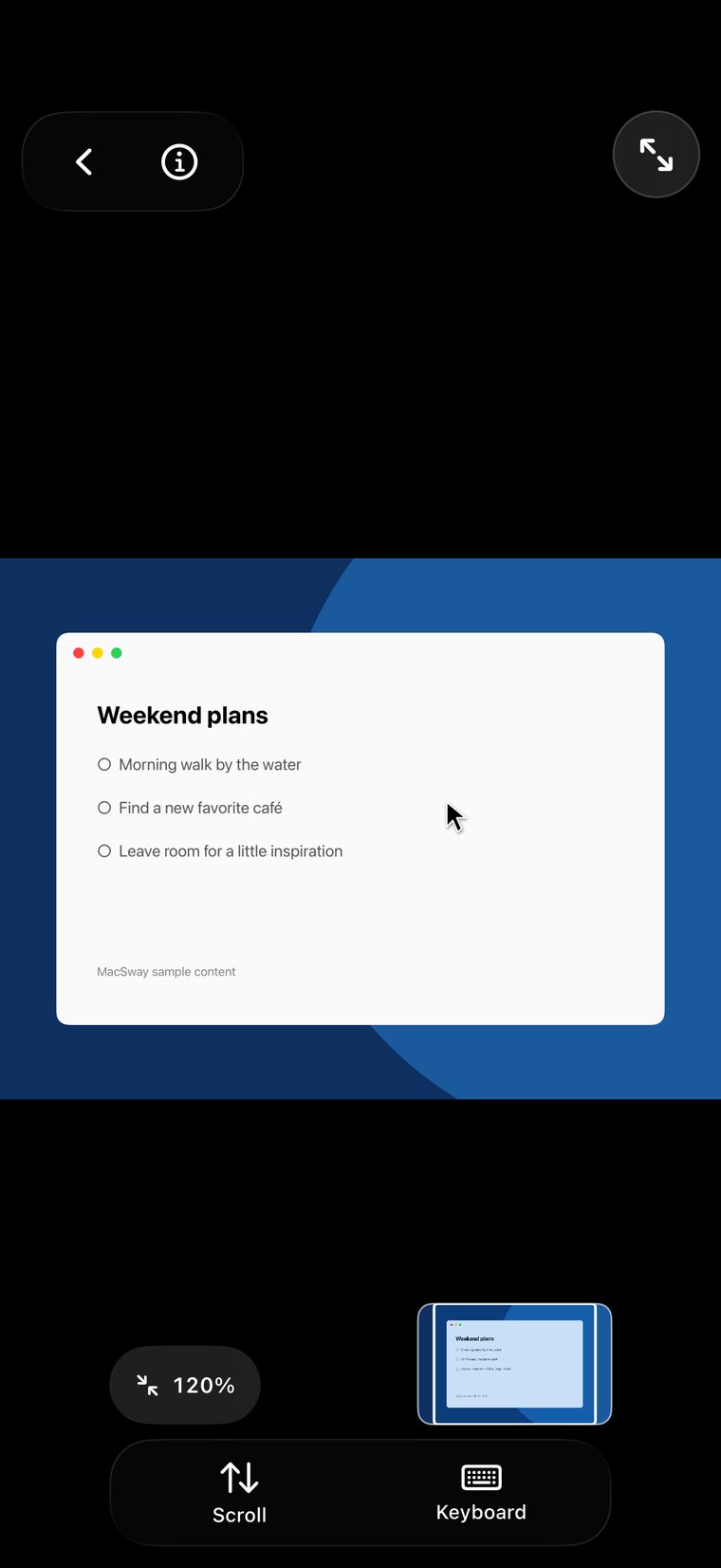
See the Mac screen live on your iPhone. Tap to click, type with the iPhone keyboard, approve a request, open a file or start a task without going back to your desk.
CONTROL YOUR MAC FROM YOUR IPHONE
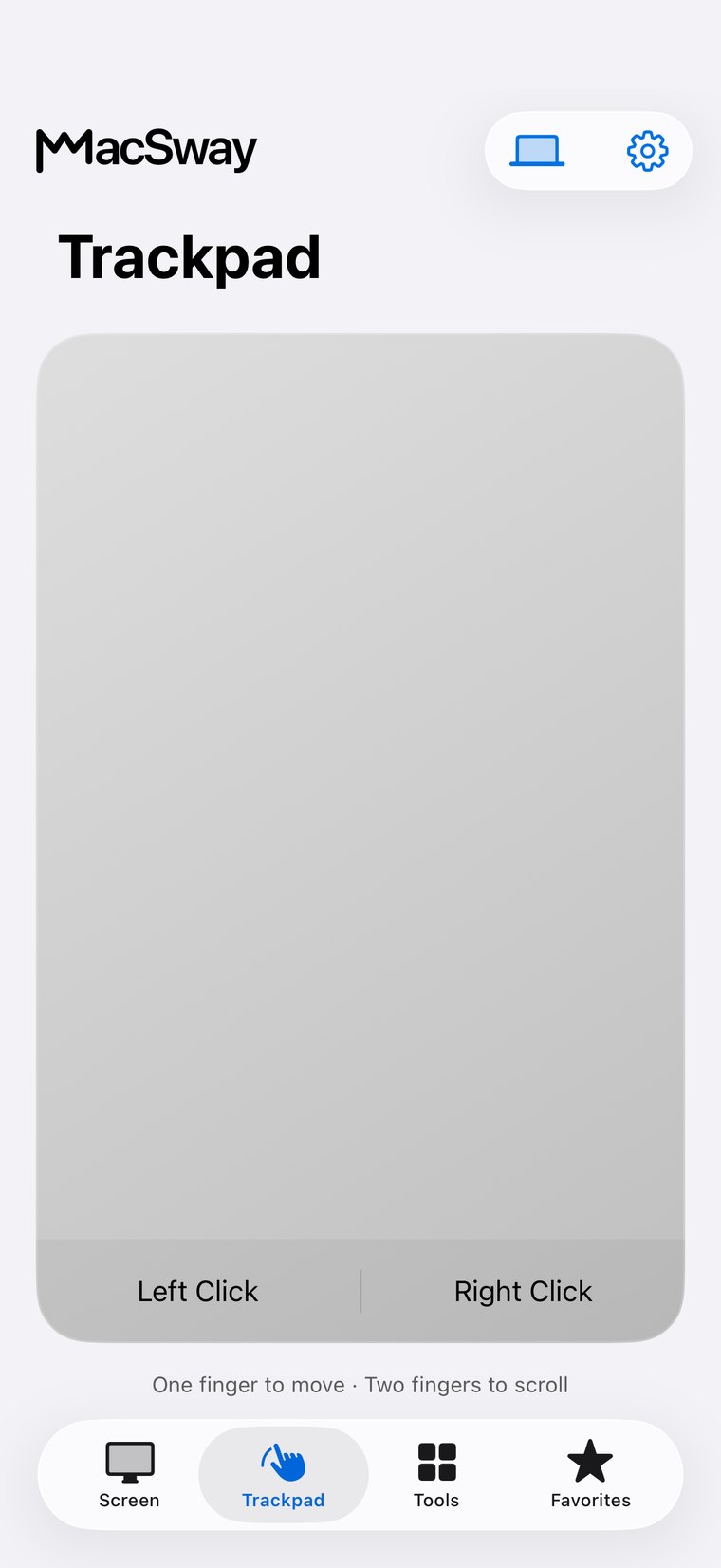
Your Mac stays at your desk. Your iPhone goes with you. Use it as a trackpad and keyboard from the couch, or see and control the Mac’s screen from another room or another city. No account needed.
MacSway makes your iPhone the remote for a Mac that stays at your desk or in the corner. Here is what you can do from where you are.
See the Mac screen live on your iPhone. Tap to click, type with the iPhone keyboard, approve a request, open a file or start a task without going back to your desk.
Start a movie, pause the music or change the volume on a Mac that is connected to the TV or speakers. Your iPhone is the trackpad and keyboard.
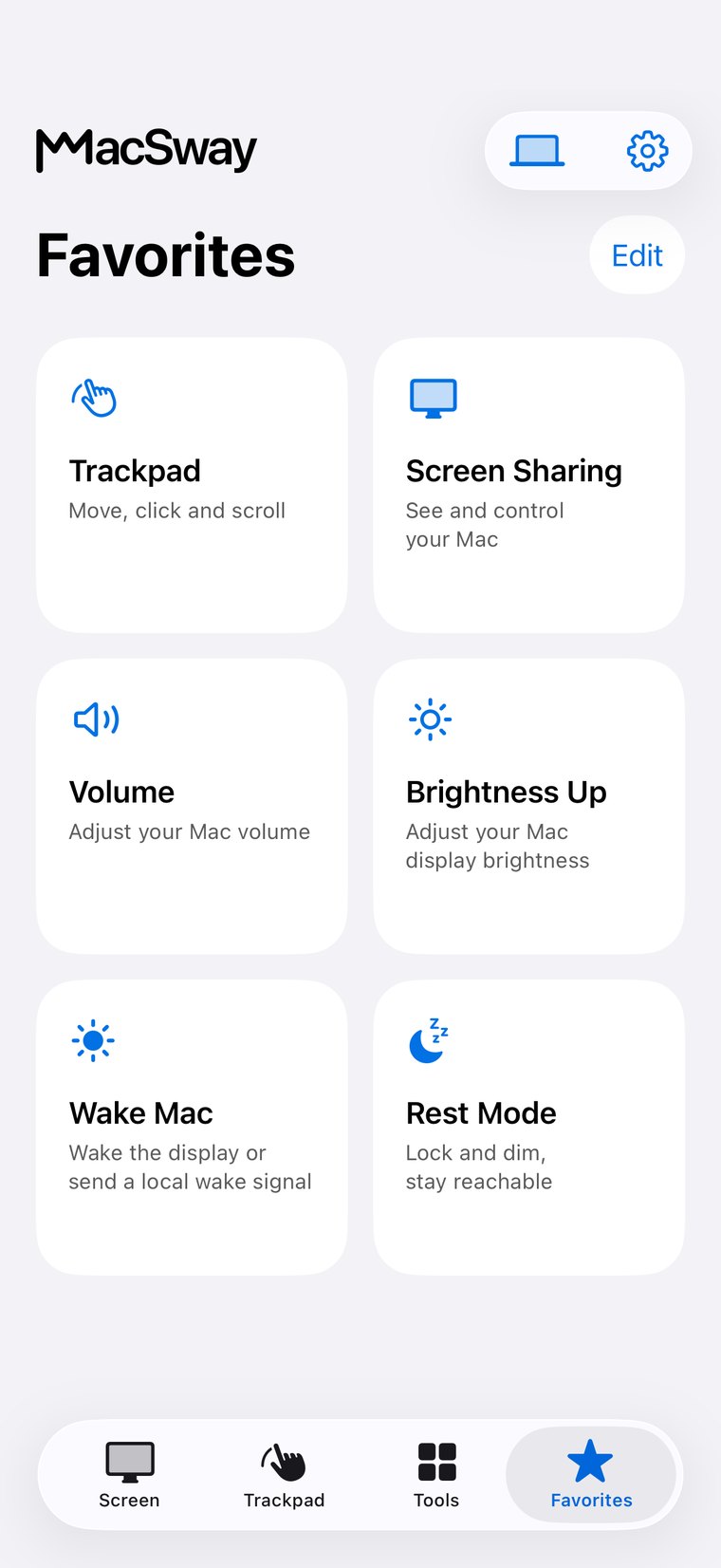
Put the actions you use every day, like mute, volume or window layout, on your Home Screen. One tap, no app to open.
Adjust volume and brightness, play and pause Music or Spotify, and lock the Mac or put it in Rest mode when you walk away.
Six-digit pairing and TLS 1.3. No account, and nothing passes through a MacSway server.
At home MacSway works over your Wi-Fi. Away from home, set up Tailscale on both devices and MacSway reaches your Mac across networks. Leave the Mac on and plugged in, with the companion app running. No MacSway account required.
DownloadBoth devices need Tailscale and internet. The Mac must stay on and reachable: plugged in, with a long auto-lock or in Rest mode.Setup takes a couple of minutes.
Download MacSway for Mac from this page and open it on the Mac you want to control. It runs in the menu bar.
Open the app on the same Wi-Fi network and choose your Mac.
Confirm the code shown on your Mac. You are connected.
Trackpad, keyboard and volume are free. Pro adds the screen sharing, widgets and remote access.
Everyday control at no cost.
Screen sharing, widgets and remote access.
Every Pro feature, paid once.
Build for community. Build from anywhere. 💙
Your Mac is the computer that stays in one place. Your iPhone is the one in your pocket. MacSway connects them, so what you can do at the desk you can do from wherever you are.
Everything in the app's Tools tab, in short.
MacSway connects your iPhone straight to your own Mac. There is no MacSway cloud in between.
Four things, and you are ready to go.
Quick answers before you install.
Yes. The iPhone is the remote and the Mac is the computer you control, so both need the app. Install MacSway on your iPhone and the companion app on your Mac. The Mac app runs in the menu bar and receives the commands.
Yes, with Pro and a Tailscale connection that you set up on both devices. Both need internet, and the Mac must stay on and reachable: plugged in, awake or in Rest mode.
MacSway is made for iPhone running iOS 17 or later and Mac running macOS 14 or later. Windows and Android are not supported.
Pair using a six-digit code. Communication uses TLS 1.3, and device-specific access can be revoked from the Mac.
Wake behavior depends on your Mac, network and power settings. Waking from genuine system sleep is not guaranteed. For reliable remote use, MacSway provides a display-off rest mode that keeps the Mac available.
Yes. Install the free MacSway companion on your Mac and the app on your iPhone, then pair them with a six-digit code. Your iPhone becomes a trackpad, keyboard and remote for the Mac, from the couch or from another room. With Pro you can also see the Mac's screen and reach it from other networks.
No. MacSway has no accounts, no analytics inside the apps and no cloud server in between. Purchases go through the App Store.
The trackpad, keyboard and volume control are free when your iPhone and Mac are on the same Wi-Fi. Pro adds screen sharing, widgets, remote access and more tools. You can buy it as a subscription (new subscribers who qualify get a 7-day trial) or once.
No, it is the opposite. iPhone Mirroring shows your iPhone on your Mac. MacSway shows and controls your Mac on your iPhone.
Open MacSway on the iPhone, search for devices and pick your Mac. Accept the request on the Mac and enter the six-digit code it shows. The pairing is remembered, so you only do this once per Mac.
Accessibility, so MacSway can move the pointer and type. Screen Recording, for screen sharing. Local Network, so the two apps can find each other. You can change all three in System Settings under Privacy & Security.
No. The picture goes straight from your Mac to your iPhone and is not saved. There is no MacSway server that could receive it.
No. MacSway does not route or inspect your traffic. To use it away from home, install the separate Tailscale app on both devices; MacSway then reaches the Mac through Tailscale.
At home, on the same Wi-Fi, it works right away. On another network or on mobile data you need Pro and Tailscale on both devices. The Mac must be on, awake and running MacSway, so keep it plugged in and extend the automatic lock, or use Rest mode.
Yes. Pair as many Macs as you like and pick the one you want from the device list.
Type on the Mac with the iPhone keyboard, press Return, Delete, Tab and Escape, and send text to the Mac's clipboard.
Yes, with Pro. Files are saved to your Mac's Downloads folder, and a photo can be placed into a text field on the Mac.
Home Screen widgets that run a Mac action with one tap: mute, play and pause, volume, window layout. They are part of Pro.
Yes. Play, pause, next and previous for Music and Spotify, plus a volume slider.
Yes. With screen sharing you can watch a long build, approve a prompt or type a quick fix from your phone. MacSway does not connect to any particular tool; it gives you access to your Mac.
Open the MacSway menu on the Mac, go to the paired devices and revoke that phone. It can only connect again with a new code.
Apple shows the price in the app. Pro is a monthly or yearly subscription (with a 7-day trial for new subscribers who qualify) or a one-time purchase. You manage or cancel a subscription in your Apple ID settings.
Download it from this website. It is signed with an Apple Developer ID and notarized by Apple. Open it once and it stays in your menu bar.
This website is available in 43 languages. The apps are being translated into the same languages; the App Store version currently speaks English, Hungarian, German, French and Spanish.
Write to [email protected] or open the Support page. Include your app and macOS versions and how you connect. Never send pairing codes or screenshots of private content.
When the Mac stays in one place and you do not: pause a movie from the couch, present from a different spot in a meeting room, check a long task from another room, or reach your Mac at home from another city.
Keep it plugged in. In the MacSway menu turn on the option that keeps the Mac available with the display asleep, or extend the automatic lock. Allow Accessibility, Screen Recording and Local Network, and start MacSway at login. A closed MacBook lid puts the Mac to sleep. The full checklist is on the page “How to prepare your Mac for remote control”.
MacSway works with any Mac that runs macOS 14 or later: MacBook Air and Pro, iMac, Mac mini, Mac Studio and Mac Pro, with Apple silicon or Intel processors. The iPhone needs iOS 17 or later. Windows, Android and iPad are not supported.
Install the Mac app and the iPhone app, pair with a six-digit code, and start.