SETUP

Prepare your Mac:
keep it awake and reachable

For MacSway you grant three permissions on the Mac (Accessibility, Local Network, and Screen Recording for screen sharing) and keep the Mac from sleeping: plug it in and use Rest mode. This page walks you through it step by step. The MacSway Mac app runs in the menu bar and starts at login by default.

Free to start · iOS 17+ · macOS 14+ · Both apps required
Signed and notarized by Apple · macOS 14+ · Apple silicon and Intel
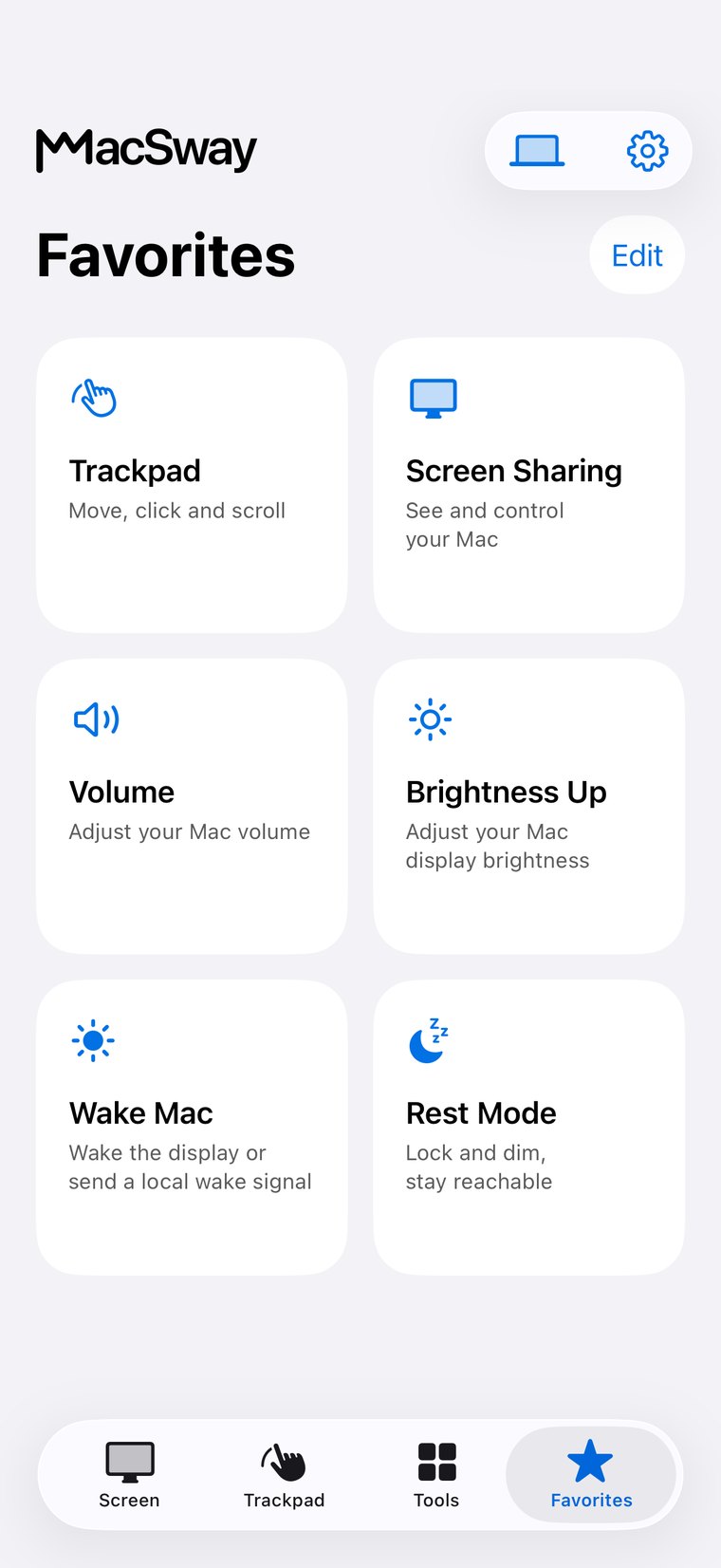
MacSway Favorites screen
✦
Plugged inStays reachable
Three permissionsNeeded once
NO ACCOUNT · NO CLOUD RELAYSee features
01

Permissions on the Mac

The MacSway Mac app works with system permissions, which you grant once.

  • Accessibility: for clicking, typing, windows and shortcuts.
  • Local Network: this is how MacSway finds the Mac on Wi-Fi.
  • Screen Recording: for screen sharing. Sound from the Mac needs Screen and System Audio Recording.
  • Automation: for controlling Music or Spotify; the system asks the first time.
MacSway
MacSway
02

How to keep the Mac reachable

MacSway can only reach a Mac that is awake.

  • Plugged in: plug it in so it does not sleep because of a low battery.
  • Rest mode: turns the display off while the Mac stays reachable.
  • Closed lid: a Mac with the lid closed or sent to system sleep disconnects.
  • Waking: waking the Mac with MacSway is not guaranteed, and Rest mode is the reliable option.
MacSway
MacSway

Set up step by step

01↗
↓

Download the MacSway Mac app from the website and open it: it appears in the menu bar.

02↗
↓

When the Mac asks, allow Local Network.

03↗
• • •
• • •

In System Settings, under Privacy and Security, allow Accessibility, Screen Recording for screen sharing, and Automation for music control.

04✓
✓

Plug in the Mac, and on the iPhone turn on the "Stay reachable with the display asleep" setting.

Preparing your Mac at a glance

01↗
↓

What you need

The MacSway Mac app (macOS 14 or later), which runs in the menu bar. You grant the permissions once. It works with any Mac running macOS 14 or later: MacBook Air and Pro, iMac, Mac mini, Mac Studio and Mac Pro, with Apple silicon or Intel.

02↗

What it costs

Preparing the Mac is free. In MacSway the trackpad, keyboard and volume are free, and the rest is Pro: $3.99 a month, $24.99 a year or $49 once (US prices).

03↗

How private it is

MacSway works with the permissions you grant, connects straight to your iPhone and uses no MacSway server.

04✓
↓

Limits

A Mac that is asleep or has its lid closed cannot be reached. Rest mode works only with the "Stay reachable with the display asleep" setting on.

AWAY FROM HOME

Reach your Mac
when you are away.

At home MacSway works over your Wi-Fi. Away from home, set up Tailscale on both devices and MacSway reaches your Mac across networks. Leave the Mac on and plugged in, with the companion app running. No MacSway account required.

DownloadBoth devices need Tailscale and internet. The Mac must stay on and reachable: plugged in, with a long auto-lock or in Rest mode.
PRICING

Free to start.
Pro when you need more.

Trackpad, keyboard and volume are free. Pro adds the screen sharing, widgets and remote access.

FREE
$0forever

Everyday control at no cost.

  • Local trackpad and gestures
  • Keyboard input
  • Volume controls
Try it
LIFETIME PRO
$49one time

Every Pro feature, paid once.

  • All Pro tools included
  • Non-renewing purchase
  • No recurring subscription
Try it

Build for community. Build from anywhere. 💙

FAQ

Common
questions.

Quick answers before you install.

What permissions does MacSway need on the Mac?

MacSway needs Accessibility (clicking, typing, windows) and Local Network (finding the Mac) on the Mac. Screen sharing also needs Screen Recording, sound from the Mac needs Screen and System Audio Recording, and music control needs Automation.

How do I stop my Mac from sleeping so I can reach it with MacSway?

For MacSway plug the Mac in, and on the iPhone turn on the "Stay reachable with the display asleep" setting. Rest mode then turns the display off while the Mac stays reachable.

What is MacSway's Rest mode?

MacSway's Rest mode locks the Mac and turns the display off, while the Mac stays reachable for the iPhone. Rest mode works only with the "Stay reachable with the display asleep" setting turned on.

Can I reach a MacBook with its lid closed using MacSway?

No, a Mac with its lid closed or sent to system sleep disconnects from MacSway. The "Stay reachable with the display asleep" setting only prevents sleep caused by inactivity.

Does MacSway wake a sleeping Mac?

Not reliably: waking works only on the local network, and even there not for sure. The dependable option is Rest mode, which turns the display off while the Mac stays reachable.

Why does the Mac ask for Local Network permission for MacSway?

MacSway uses the Local Network permission to find the Mac on Wi-Fi and connect to it. Without it the iPhone cannot see the Mac.

Does the MacSway Mac app have to be running?

Yes, the MacSway Mac app has to run in the menu bar to receive the iPhone's commands. It starts at login by default, and you can turn that off in the Mac menu.

Do I need to update the MacSway Mac app?

Sound and newer features need an updated MacSway Mac app. It is a good idea to keep it up to date so every feature of the iPhone app works.

Control your Mac
from your iPhone.

Install the Mac app and the iPhone app, pair with a six-digit code, and start.

Coming soon to the App Store

MacSway is in App Store review. Leave your email and we will send you a single message when it is available.